Tutorial 01: Hello World Agent - Build Your First AI Agent with Google ADK
Overview
Build your first AI agent with Google Agent Development Kit (ADK). This tutorial starts from absolute zero - you'll create a simple conversational agent that can chat with users. No prior ADK experience needed!
Prerequisites
- Python 3.9+ installed on your system
- Terminal/command line access
- Google API key - Get one free at Google AI Studio
- Basic understanding of Python (if you can read Python, you're good!)
Core Concepts
What is an Agent?
An agent in ADK is an AI assistant powered by a Large Language Model (LLM). Think of it as a blueprint that defines:
- What the agent's purpose is (its instructions)
- Which LLM model powers it (e.g., Gemini)
- What capabilities it has (tools - we'll add these in the next tutorial)
The Agent Class
ADK provides the Agent class as the modern way to define agents. It's a simple configuration object - you just tell it what you want!
Use Case
We're building a friendly AI assistant that:
- Greets users warmly
- Answers general questions conversationally
- Has no special tools yet (just pure conversation)
This is the foundation - every ADK agent starts here!
Quick Start
The easiest way to get started is with our working implementation:
# Clone or navigate to the tutorial implementation
cd tutorial_implementation/tutorial01

# Install dependencies and setup
make setup

# Start the agent
make dev
Then open http://localhost:8000 in your browser and select "hello_agent"!
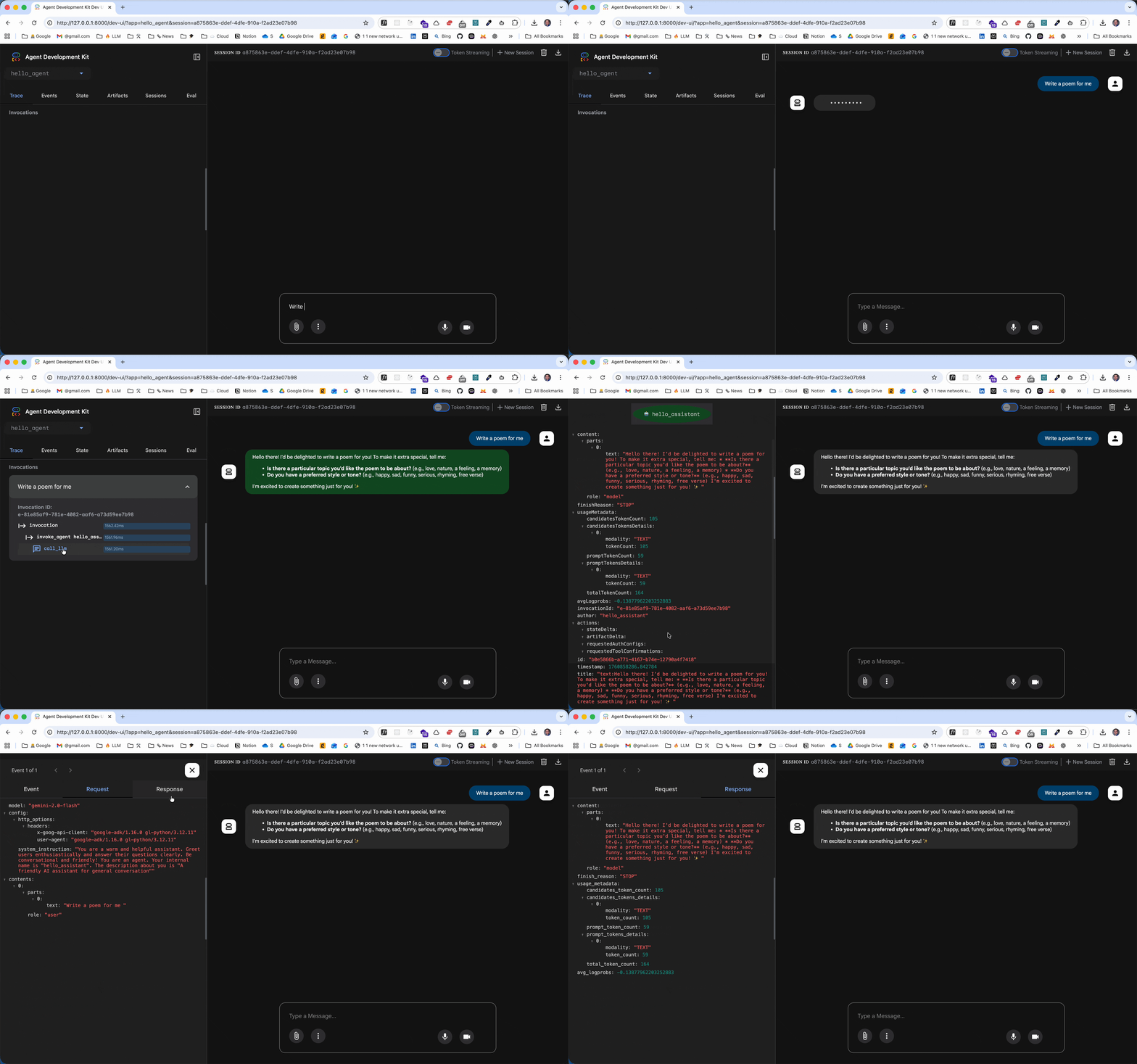
Quick Demo
Here's what your agent looks like in action:
Step-by-Step Setup (Alternative)
If you prefer to build it yourself, follow these steps:
Step 1: Installation
Open your terminal and install ADK:
pip install google-adk
This installs the complete ADK toolkit including the Dev UI, CLI tools, and all dependencies.
Step 2: Create Project Structure
ADK requires a specific folder structure. Create a new directory for your agent:
# Create the agent directory
mkdir hello_agent
cd hello_agent

# Create the required Python files
touch __init__.py agent.py .env
Your folder structure should look like this:
hello_agent/
├── __init__.py    # Makes this a Python package
├── agent.py       # Your agent definition
└── .env          # Authentication credentials
Step 3: Configure Authentication
Open .env in your text editor and add your Google AI Studio API key:
hello_agent/.env
# Using Google AI Studio (recommended for learning)
GOOGLE_GENAI_USE_VERTEXAI=FALSE
GOOGLE_API_KEY=your-api-key-here
Replace your-api-key-here with your actual API key from Google AI Studio.
Step 4: Set Up Package Import
Open __init__.py and add this single line:
hello_agent/init.py
from . import agent
This line tells ADK where to find your agent definition. It's required!
Step 5: Define Your Agent
Now for the exciting part! Open agent.py and create your agent:
hello_agent/agent.py
# Required by ADK for proper Python type hints
from __future__ import annotations

# Import the Agent class
from google.adk.agents import Agent

# Define your agent - MUST be named 'root_agent'
root_agent = Agent(
    name="hello_assistant",
    model="gemini-2.0-flash",
    description="A friendly AI assistant for general conversation",
    instruction=(
        "You are a warm and helpful assistant. "
        "Greet users enthusiastically and answer their questions clearly. "
        "Be conversational and friendly!"
    )
)
Code Explanation
from __future__ import annotations: ADK convention for better type handlingAgent: The modern ADK agent class (replaces olderLlmAgent)name: Internal identifier for your agentmodel: Which LLM to use -gemini-2.0-flashis fast and cost-effectivedescription: Brief summary of what your agent doesinstruction: Detailed behavioral instructions for the LLMroot_agent: MUST use this exact variable name - ADK looks for it!
Step 6: Run Your Agent
Navigate to the parent directory of hello_agent:
cd .. # Go up one level, so you're in the folder that contains hello_agent/
Option 1: Dev UI (Recommended for Learning)
Launch the interactive development interface:
adk web
This starts a web server. Open your browser to http://localhost:8000 and:
- Select your agent: Choose "hello_agent" from the dropdown in the top-left
- Start chatting: Type a message in the chat box
- Explore Events tab: Click "Events" on the left to see exactly what the LLM received and returned
Try these prompts:
- "Hello!"
- "What can you help me with?"
- "Tell me a joke"
Option 2: Command Line
For quick testing in the terminal:
adk run hello_agent
Type your message when prompted, and the agent will respond.
Understanding What's Happening
When you send a message to your agent:
- ADK packages your message along with the agent's instructions
- Sends it to Gemini (the LLM specified in
model) - Gemini generates a response based on the instructions
- ADK returns the response to you
Use the Events tab in the Dev UI to see this flow in detail - it shows you the exact prompts and responses!
Expected Behavior
You: Hello!
Agent: Hello! It's great to hear from you! How can I help you today?

You: What can you do?
Agent: I'm here to chat and answer your questions! I can help with general
       information, have conversations, explain concepts, or just be a
       friendly companion. What would you like to talk about?
Key Takeaways
✅ ADK agents are just configuration - you define what you want, ADK handles the rest
✅ Canonical structure required - __init__.py, agent.py, .env in a directory
✅ Variable must be named root_agent - ADK looks for this exact name
✅ Use Agent class - it's the modern, recommended approach
✅ Dev UI is your friend - the Events tab shows exactly what's happening under the hood
✅ Authentication via .env - keep your API keys safe and out of code
Common Issues & Solutions
Problem: "Agent not found in dropdown"
- Solution: Make sure you're running
adk webfrom the parent directory that containshello_agent/
Problem: "Authentication error"
- Solution: Check your
.envfile has the correct API key andGOOGLE_GENAI_USE_VERTEXAI=FALSE
Problem: "Module not found"
- Solution: Verify
__init__.pycontainsfrom . import agent
Problem: "root_agent not found"
- Solution: Your variable in
agent.pymust be exactly namedroot_agent
What We Built
You now have a fully functional AI agent! It can:
- Hold natural conversations
- Respond to questions contextually
- Remember the conversation history during a session
But it's limited to what the LLM knows. In the next tutorial, we'll give it superpowers by adding custom tools!
Next Steps
🚀 Tutorial 02: Function Tools - Give your agent the ability to execute Python functions, perform calculations, and interact with data
📖 Further Reading:
Complete File Reference
For easy reference, here are all three files together:
hello_agent/__init__.py
from . import agent
hello_agent/.env
GOOGLE_GENAI_USE_VERTEXAI=FALSE
GOOGLE_API_KEY=your-api-key-here
hello_agent/agent.py
from __future__ import annotations
from google.adk.agents import Agent

root_agent = Agent(
    name="hello_assistant",
    model="gemini-2.0-flash",
    description="A friendly AI assistant for general conversation",
    instruction=(
        "You are a warm and helpful assistant. "
        "Greet users enthusiastically and answer their questions clearly. "
        "Be conversational and friendly!"
    )
)
Congratulations! You've built your first ADK agent! 🎉
💬 Join the Discussion
Have questions or feedback? Discuss this tutorial with the community on GitHub Discussions.