Tour
On this page
- The shell
- Choosing where it may write
- The notebook
- Run all stops at the first failure
- The run map
- Python cells and their plots
- The assistant
- Asking about one cell, from the cell
- What was actually sent
- Next steps derived from the turn
- Slash commands and history
- Long-running work
- The mission view
- Approvals, inline
- Coming back, and recovering
- Files and screenshots
- The model picker
- The fence, on screen
- Every width, both themes
- 800 px: one zone at a time
- A phone
- Dark
- What these screenshots do not show
What the app looks like, from real screenshots captured with Playwright. Every figure says the width it was taken at and where it ran: deployed means a Databricks workspace; local run means the same app on a laptop, and scripted agent means a deterministic stand-in for the model, used where the screen matters more than the answer.
The shell has three parts: your sessions and files on the left, the notebook in the centre, and the assistant beside it. Everything below is a state of one of those.
The shell
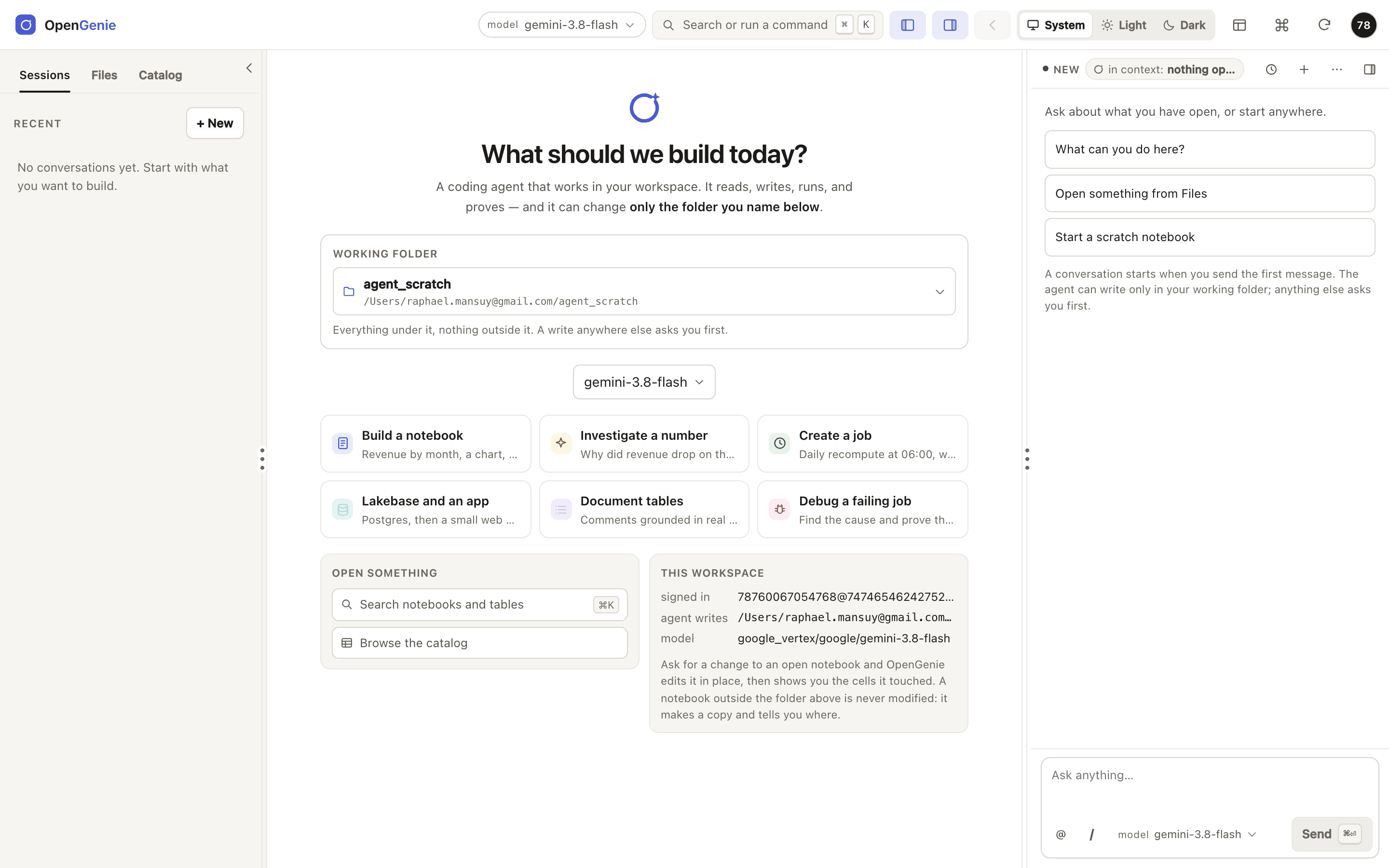
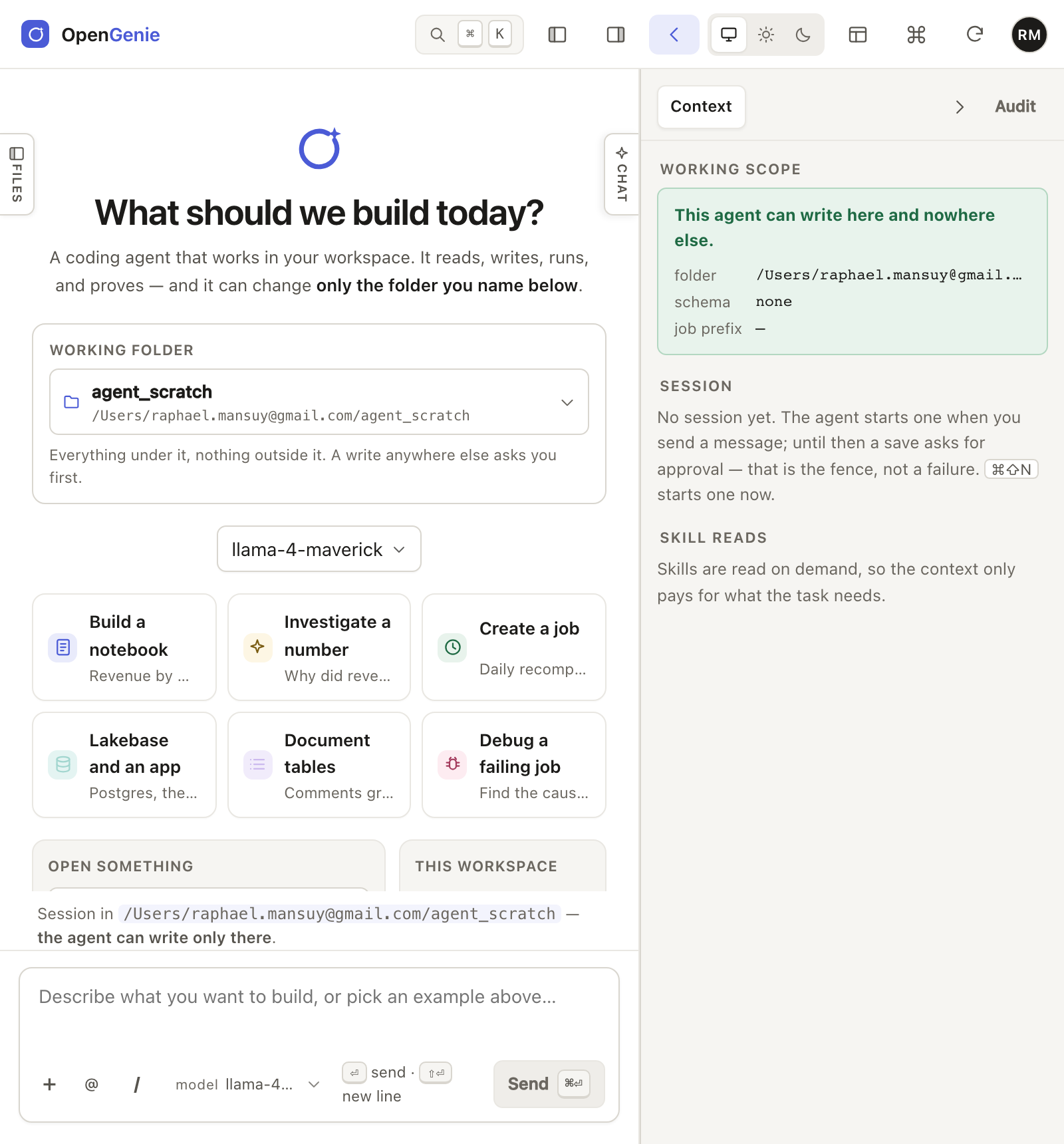
The assistant is a zone next to the notebook, not a tab, so opening a file does not close the conversation that is about it. The folder named under the greeting is the only place this conversation may write.
Choosing where it may write
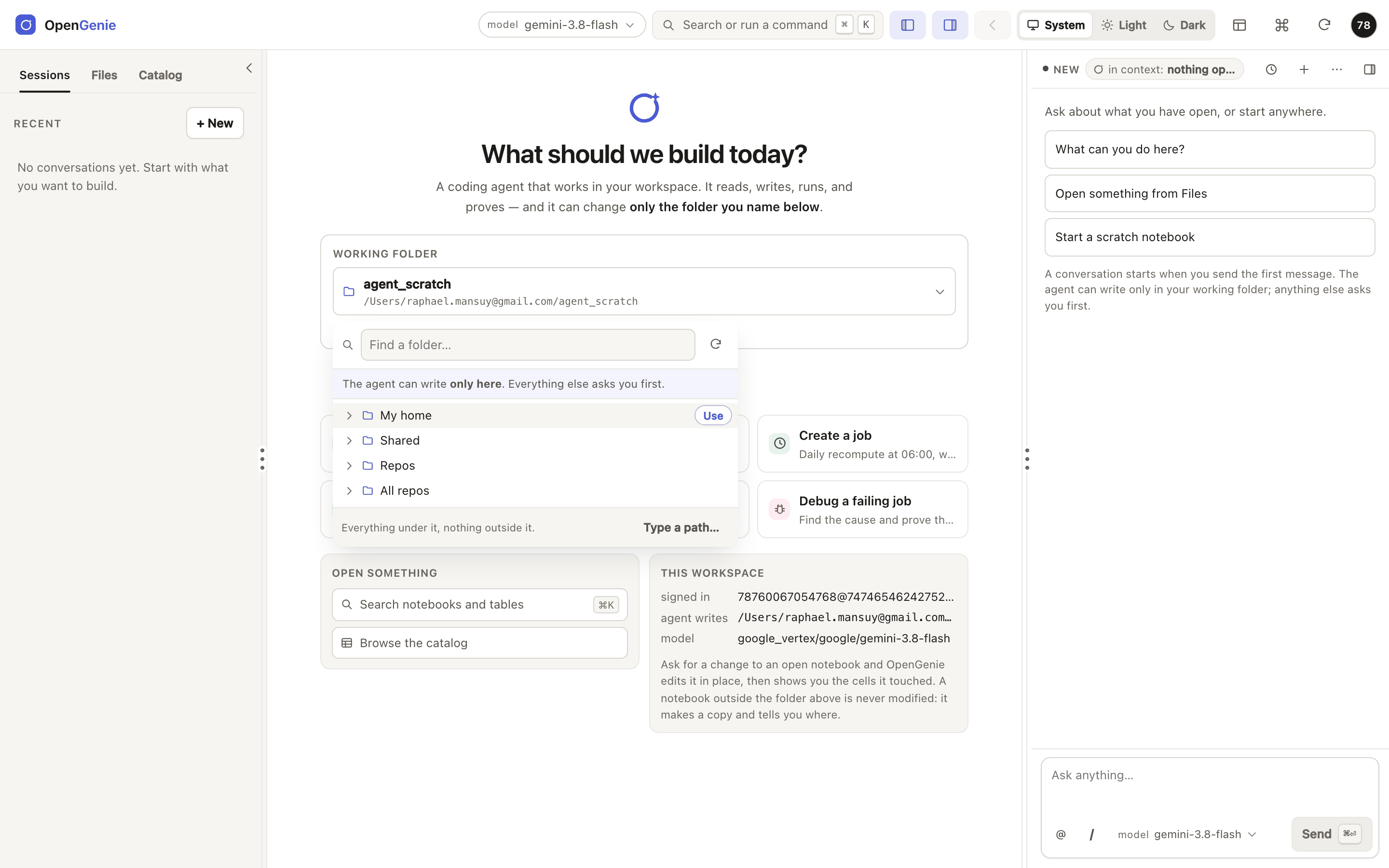
The workspace browser is how a conversation starts. Picking a folder sets the fence for the session: the choice and the permission are the same act.
The notebook
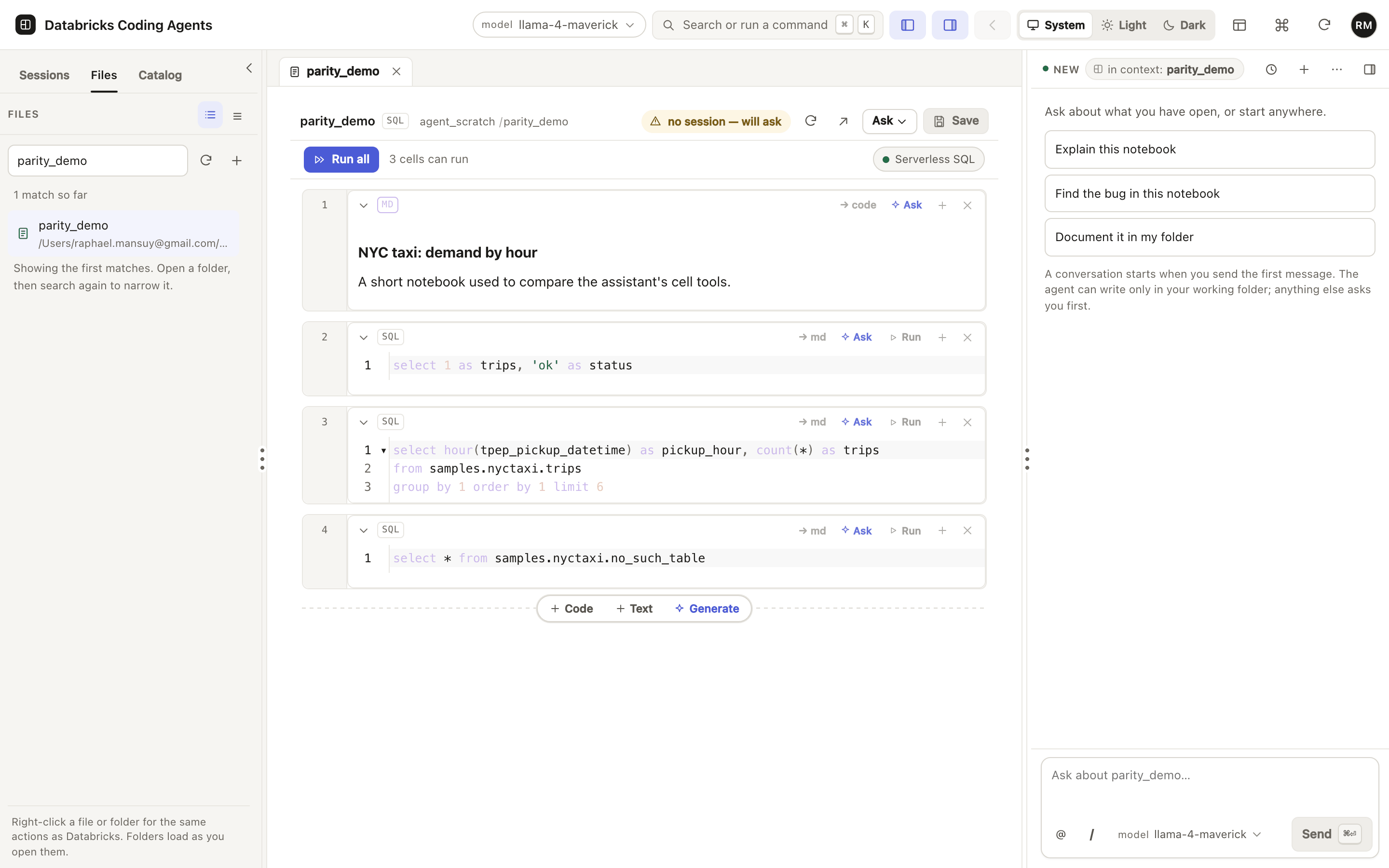
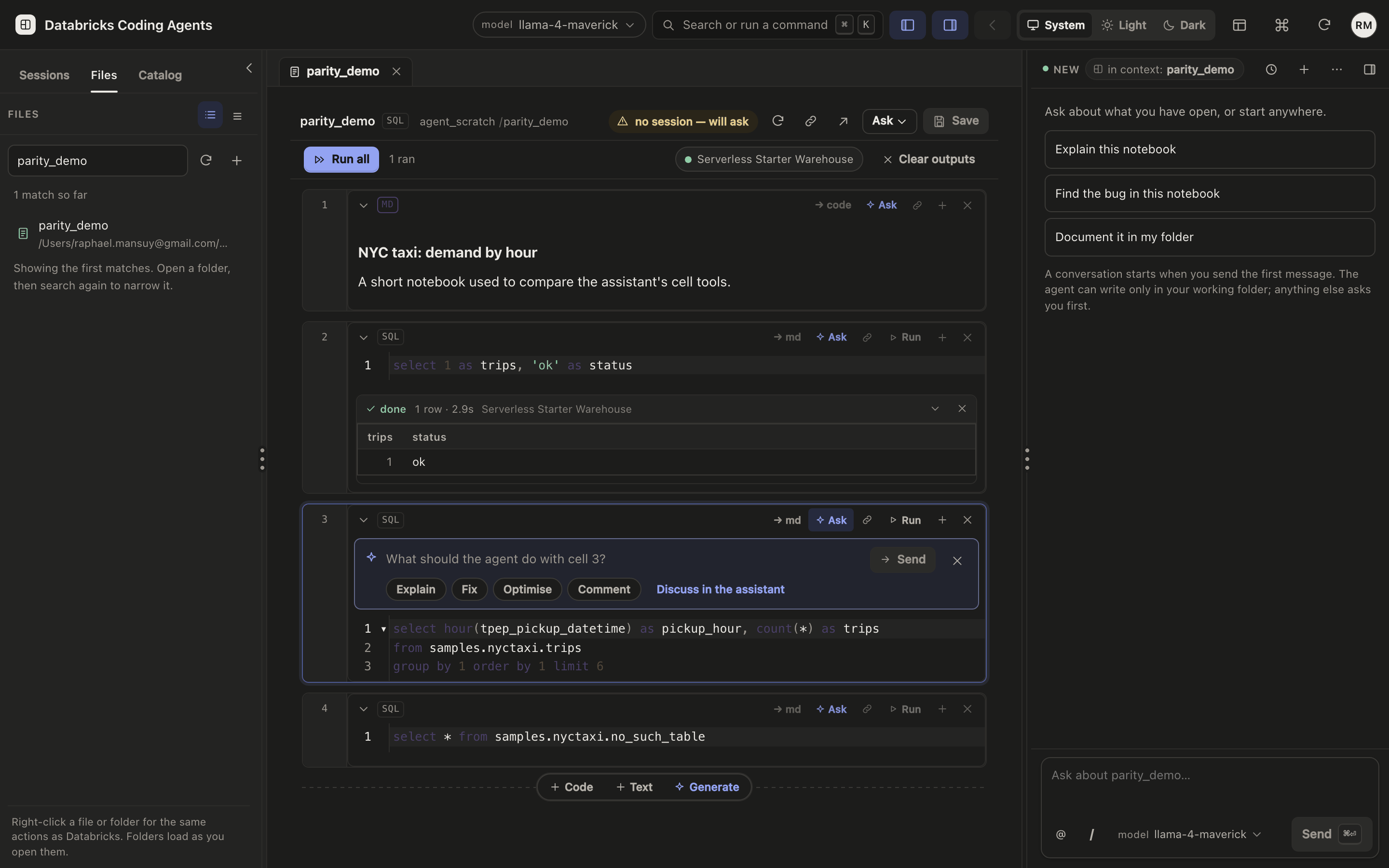
Every cell has its own Ask and Run, because the unit of the work is the cell, not the file. The bar above carries Run all and the compute the SQL will run on.
Run all stops at the first failure
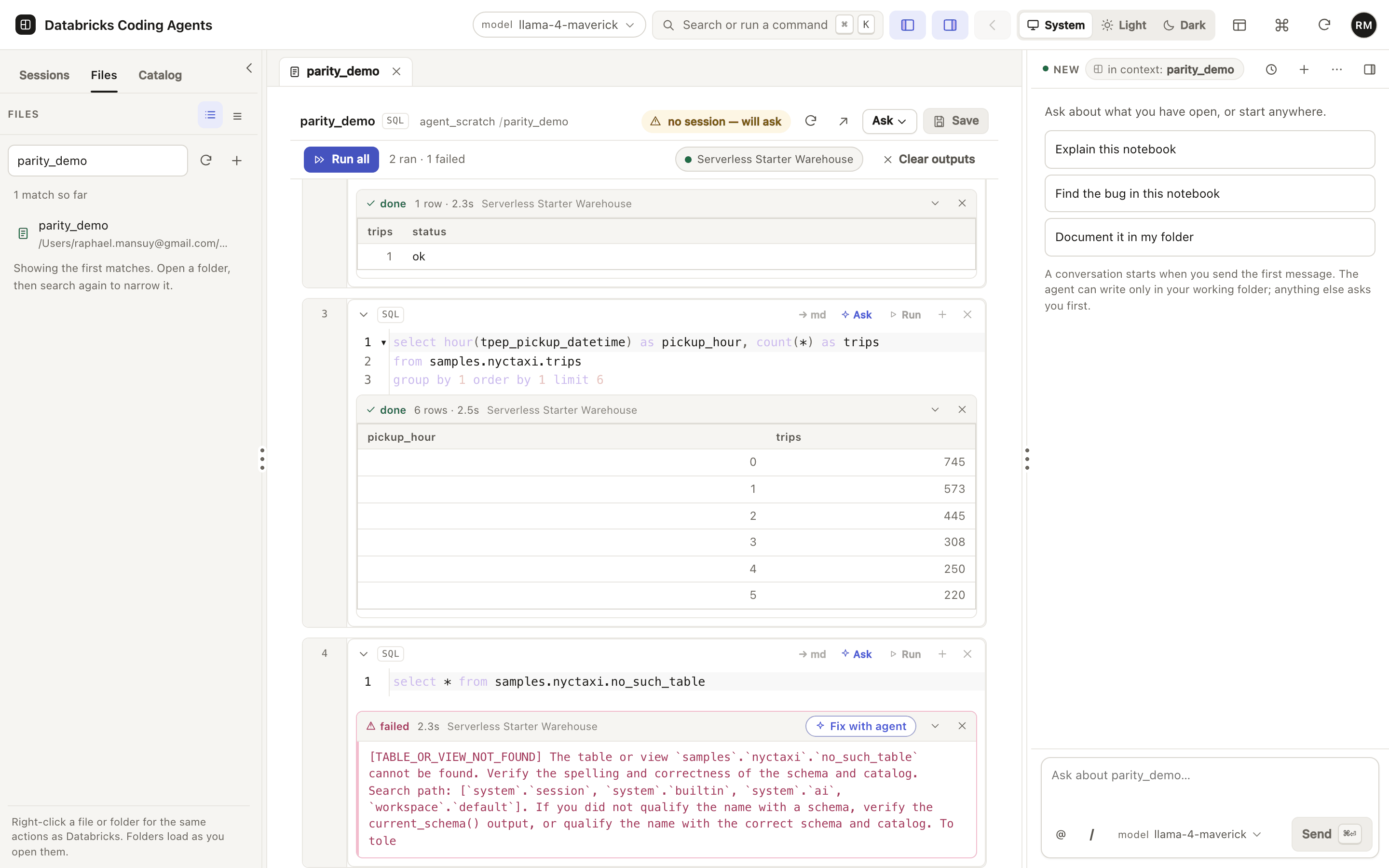
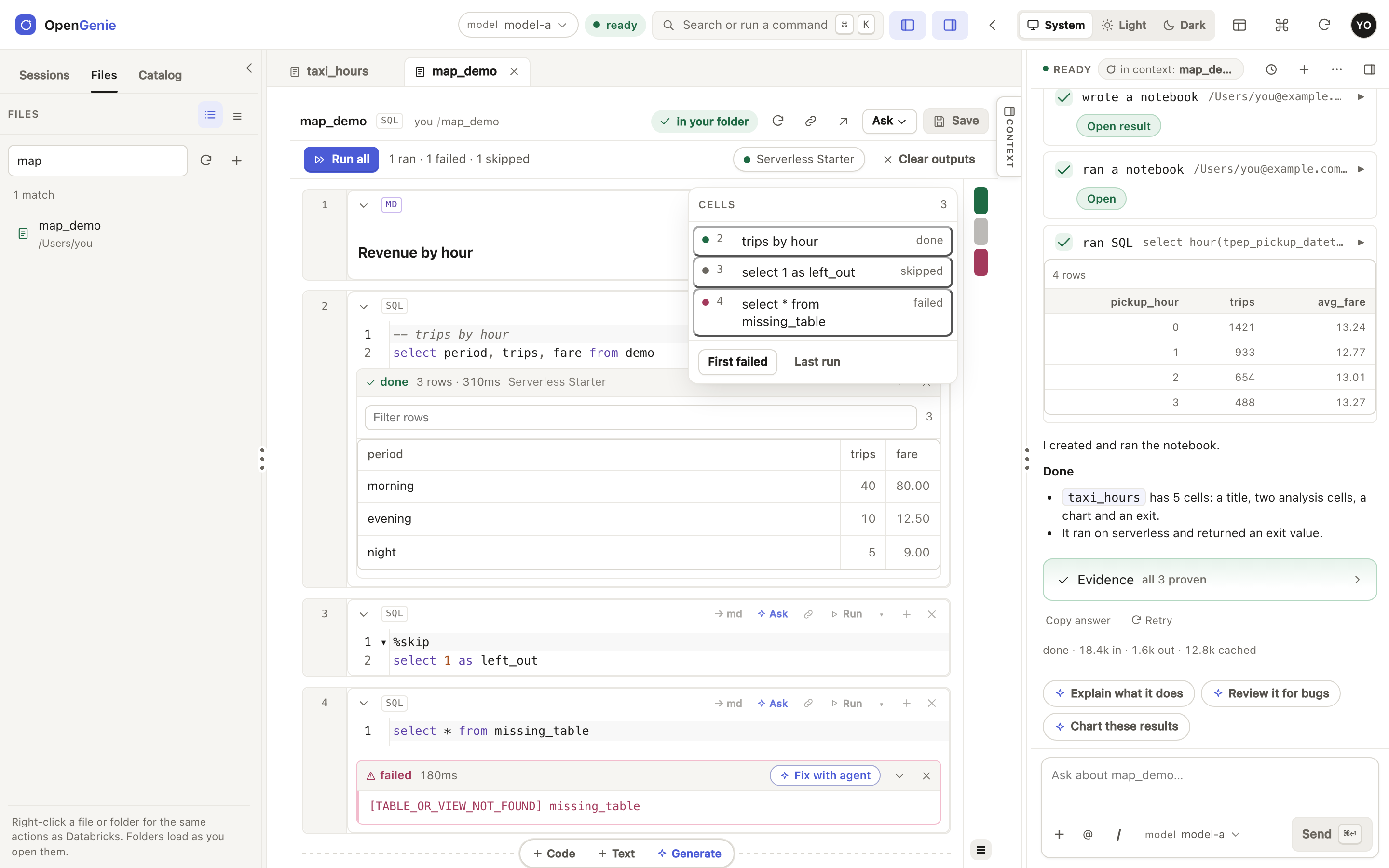
Later cells usually read what earlier ones made, so Run all stops at the first failure. The bar says “2 ran · 1 failed”, and the failing cell offers Fix with agent, which sends the engine's own error text rather than a paraphrase of it.
The run map
On a long notebook, the map lists what ran, what was skipped on purpose and what failed, with the failing statement in full. First failed and Last run jump to the cell.
Python cells and their plots
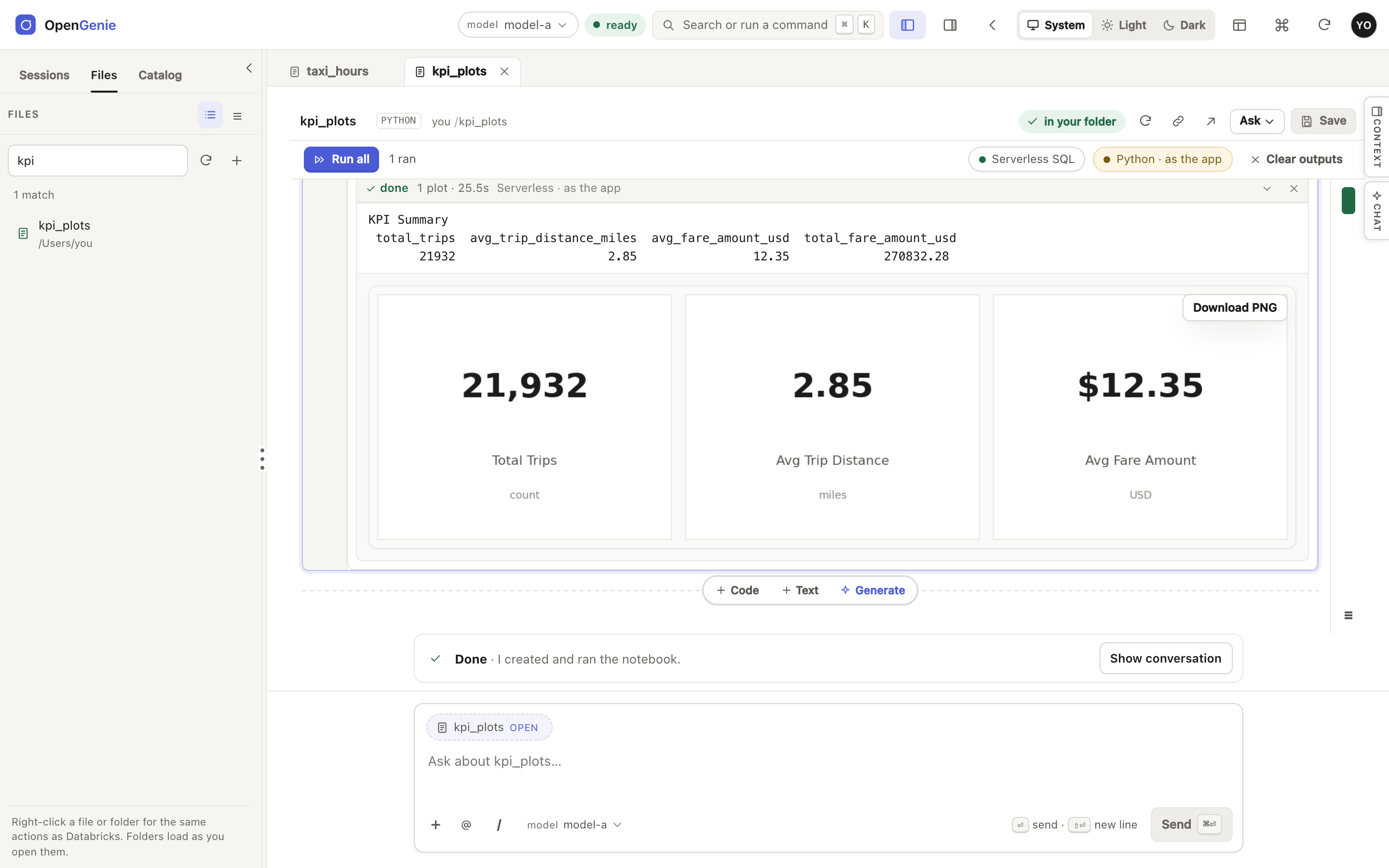
Python runs on serverless compute, started by an administrator, as the app's own service principal — every result says so, because it did not run as you. The output is drawn under the cell, and matplotlib figures the cell leaves open appear there as images, with a download button.
The assistant
Asking about one cell, from the cell
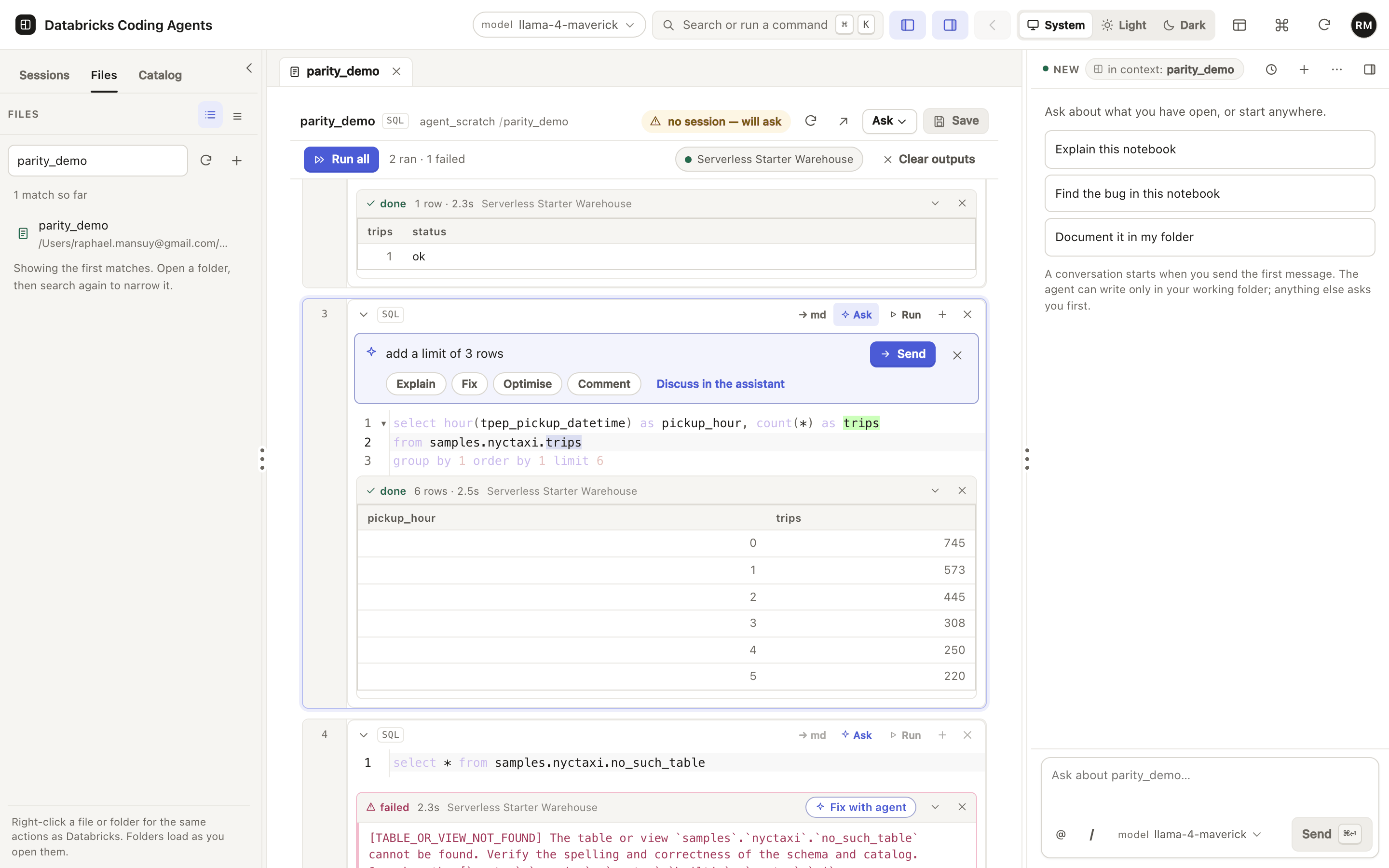
⌘I opens a prompt on the cell itself, with four one-click actions and a reminder that only this cell may change. The conversation still happens in the dock, so Stop, approvals and the audit trail stay in one place.
What was actually sent
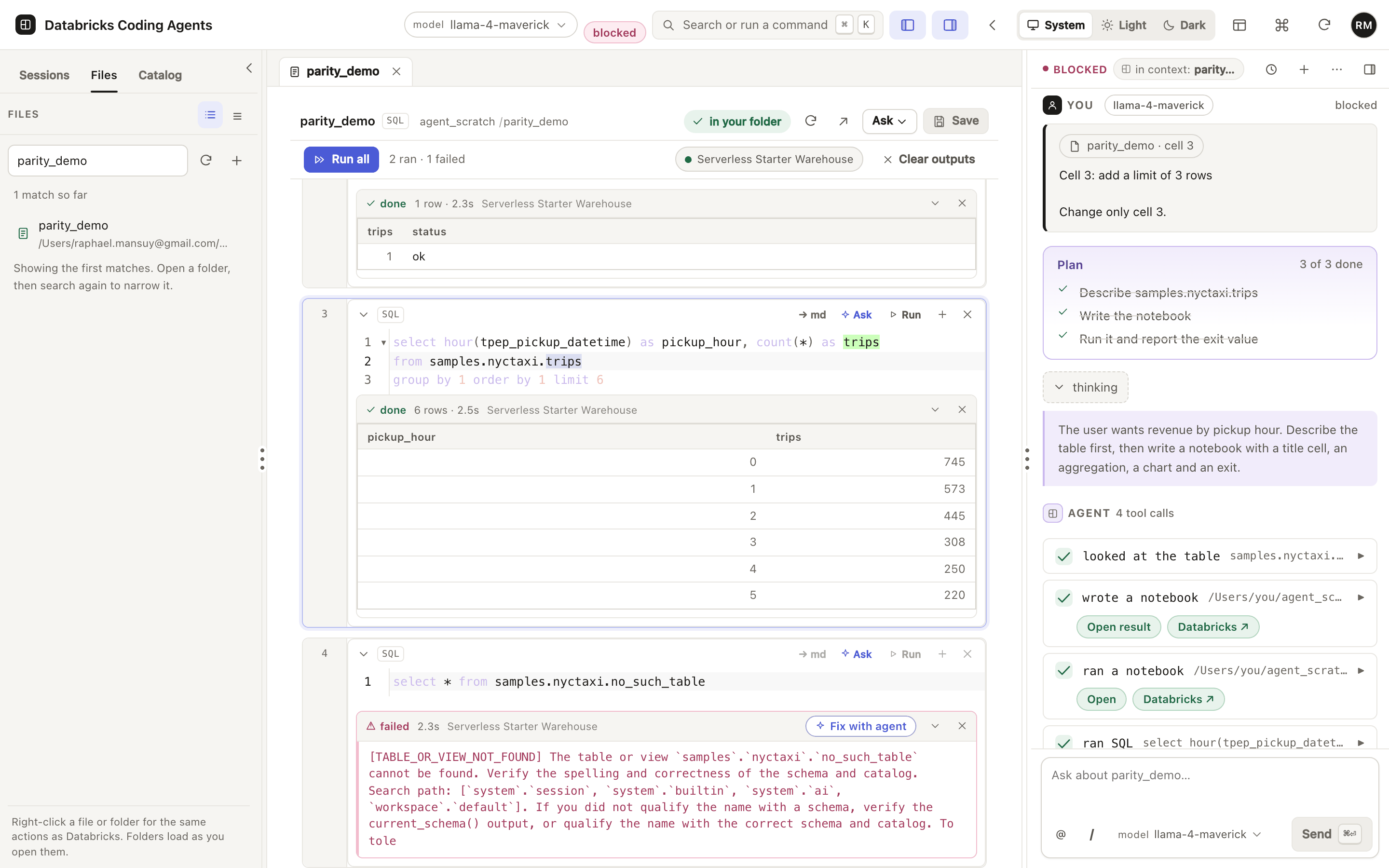
The part users never see and always wonder about: the prompt is short, it names the cell, and it states the one constraint that matters — leave every other cell alone.
Next steps derived from the turn
Up to three suggestions, derived from what the turn actually did. “Run it” appears only if a notebook was written and not run.
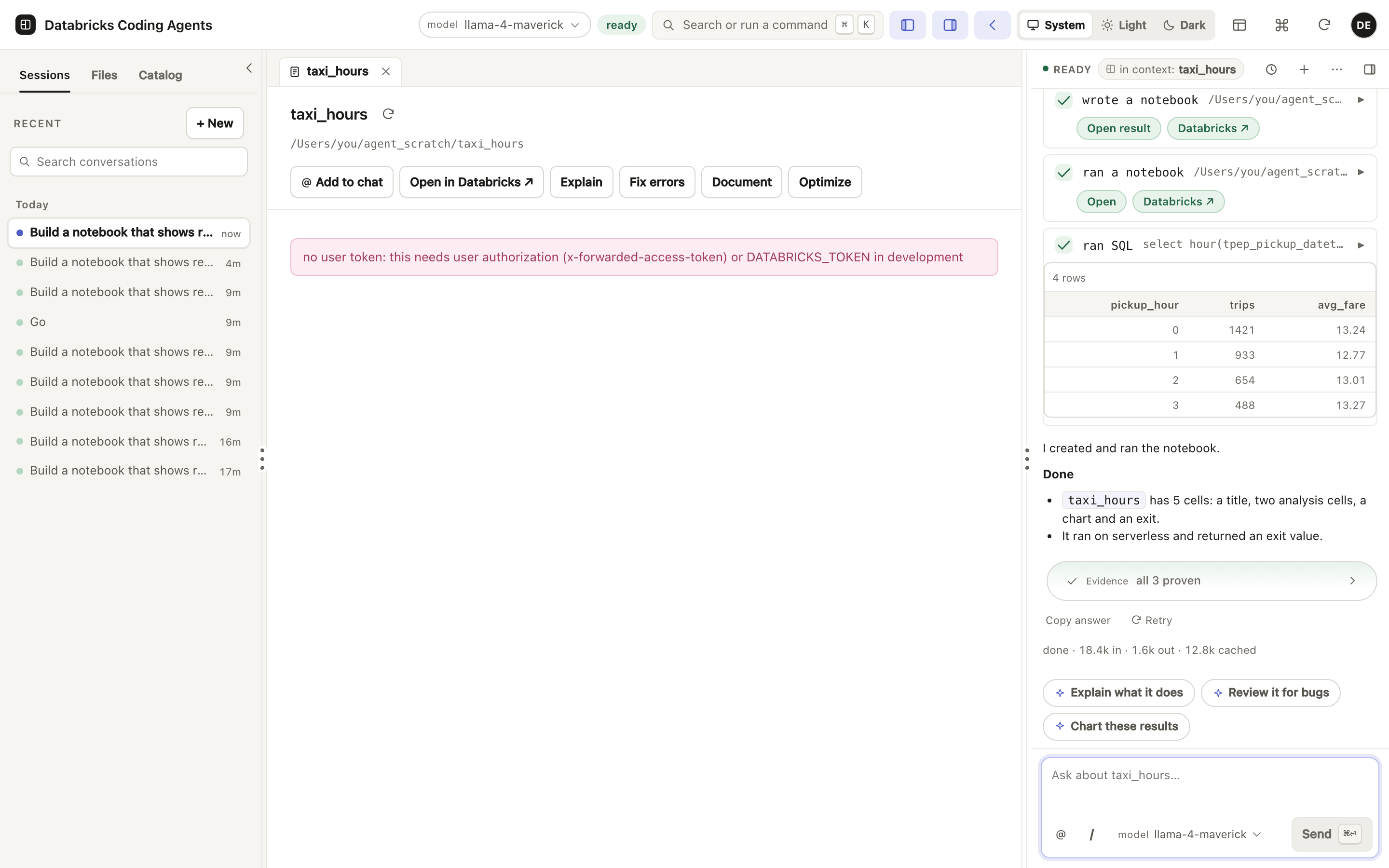
Slash commands and history
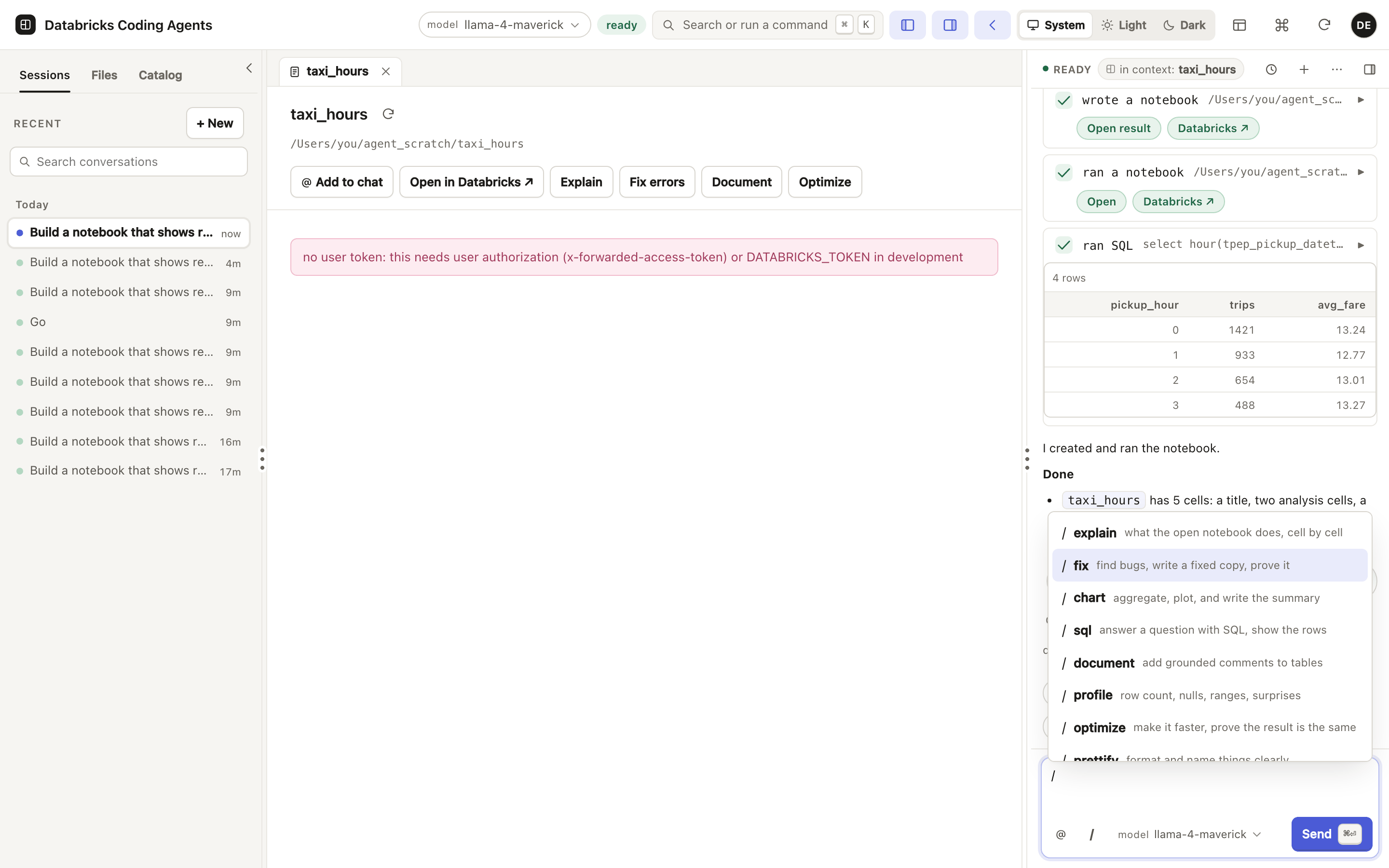
A bare / lists every registered command with its description. History is available from the dock's own header, because on a narrow screen the left rail is not there.
Long-running work
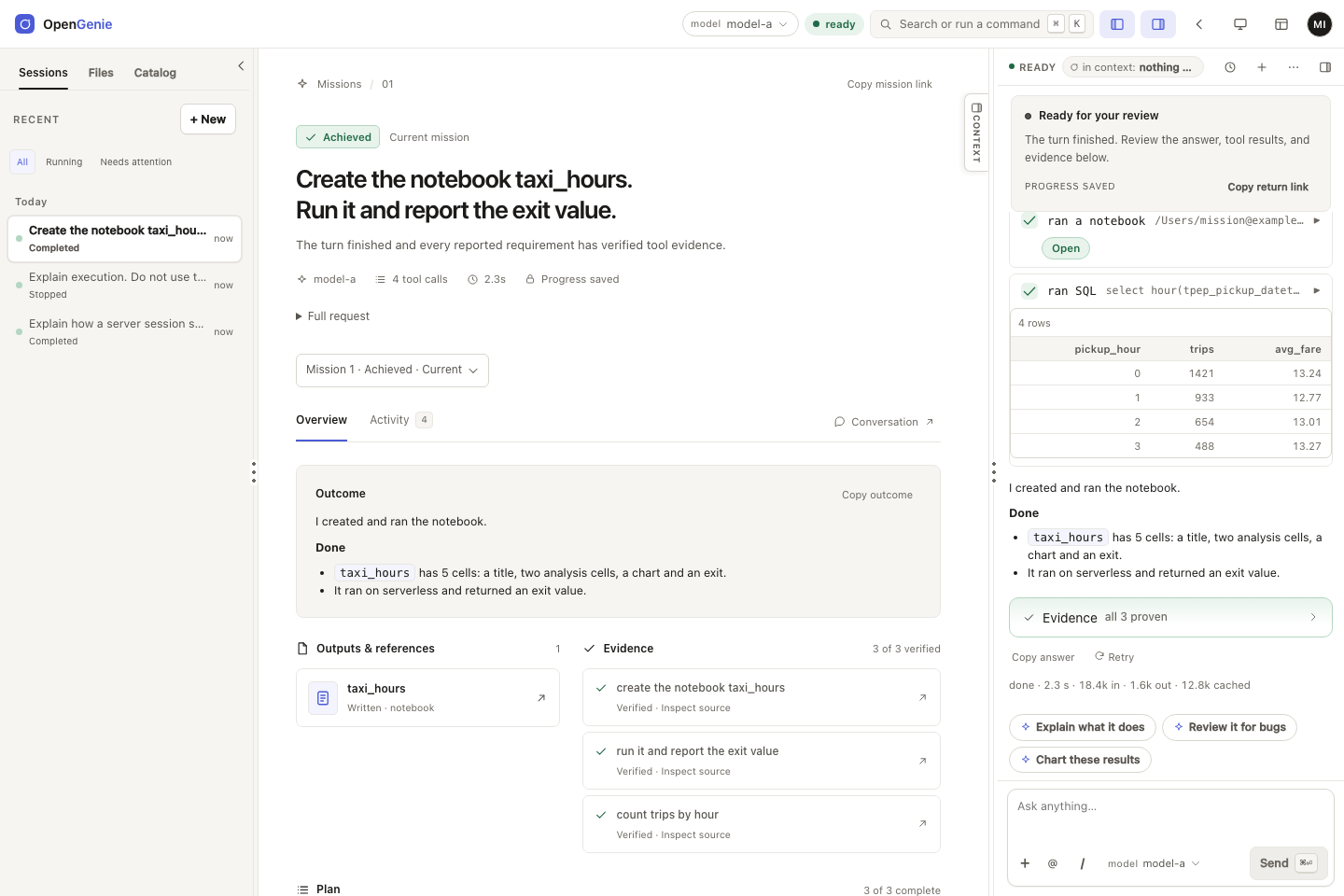
The work runs on the server, not in the browser tab, and every step is written to a journal. That is what makes the next three screens possible.
The mission view
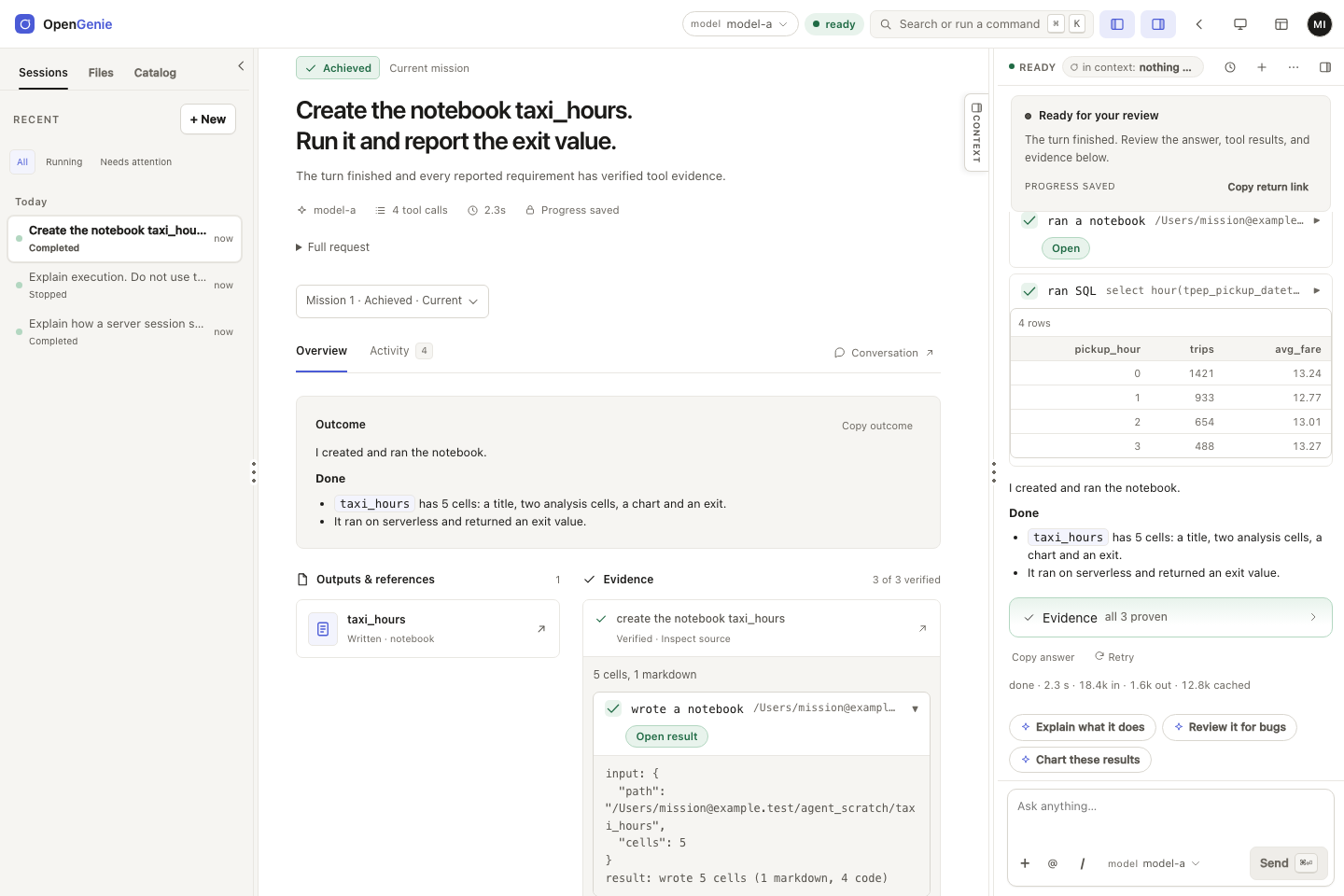
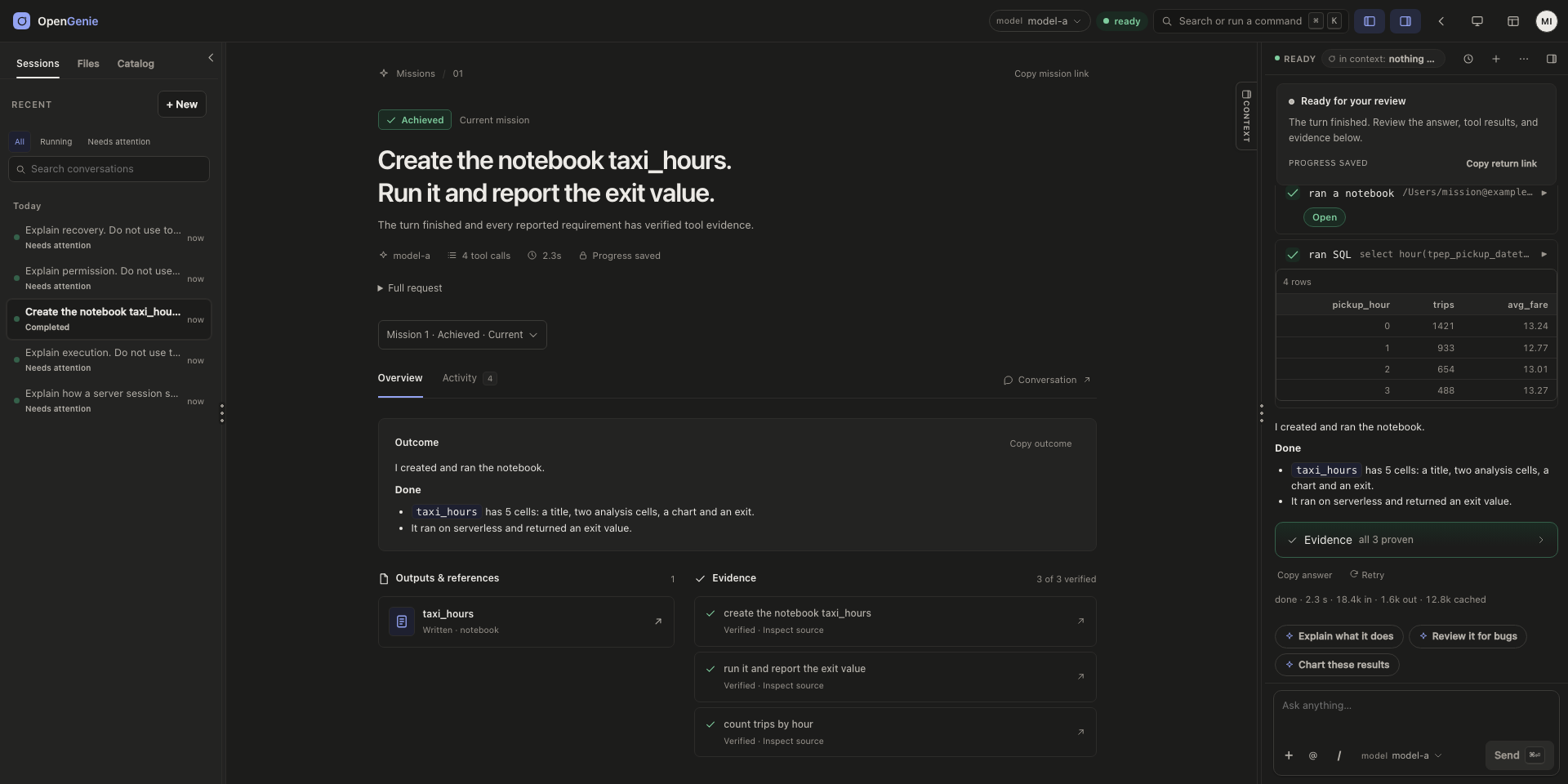
One accepted request becomes a mission: the objective, where it is now, what it wrote, and which tool call proves each requirement. Earlier missions stay selectable.
Approvals, inline
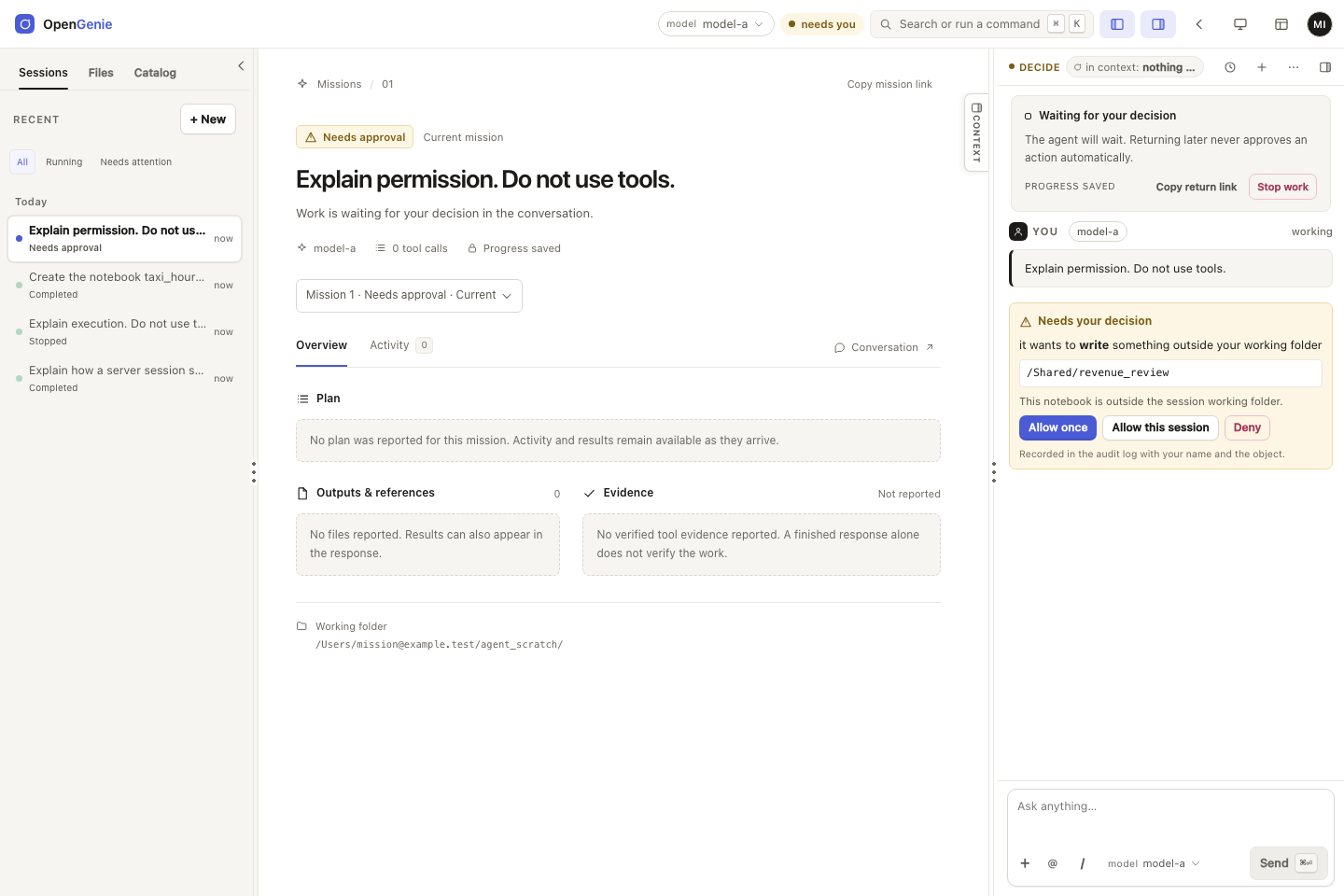
When an action needs a human, the conversation waits on one decision card that names the target and the reason. There is no modal, and closing the tab does not lose the question.
Coming back, and recovering
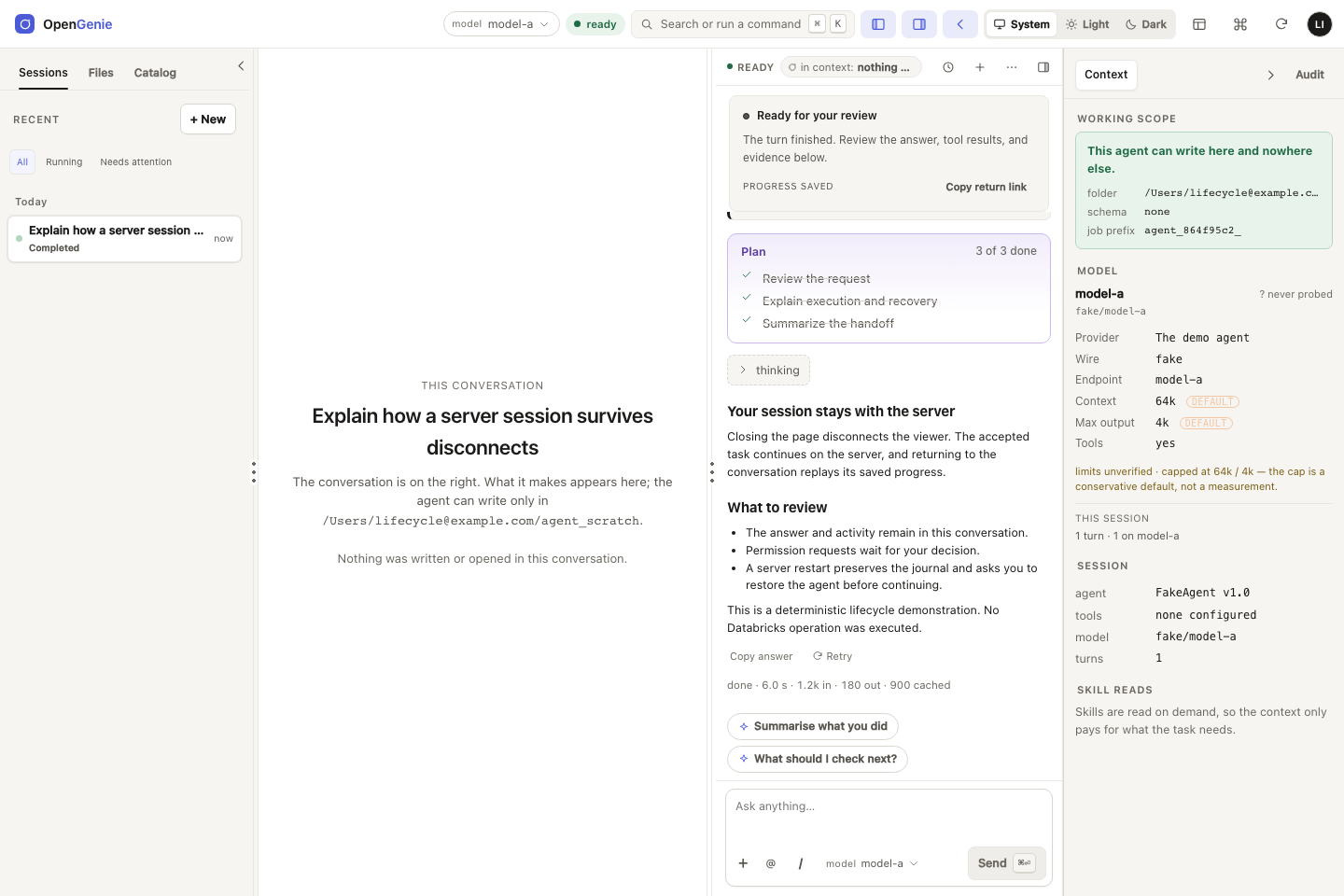
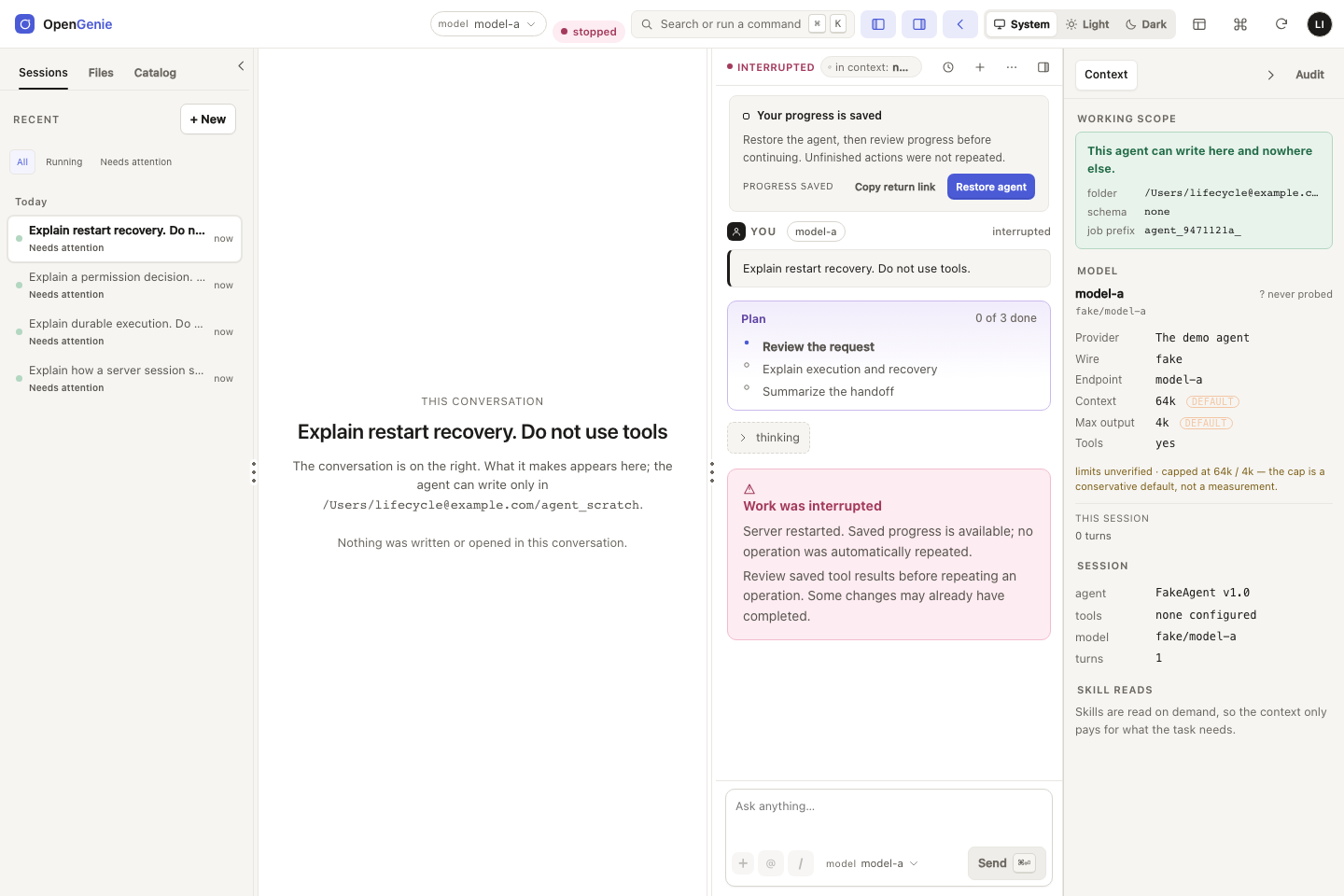
Close the page and return later: the plan, the full answer and its status are there. If the server restarted mid-turn, the app says what was interrupted and offers to restore the agent; it does not replay an uncertain operation behind your back.
Files and screenshots
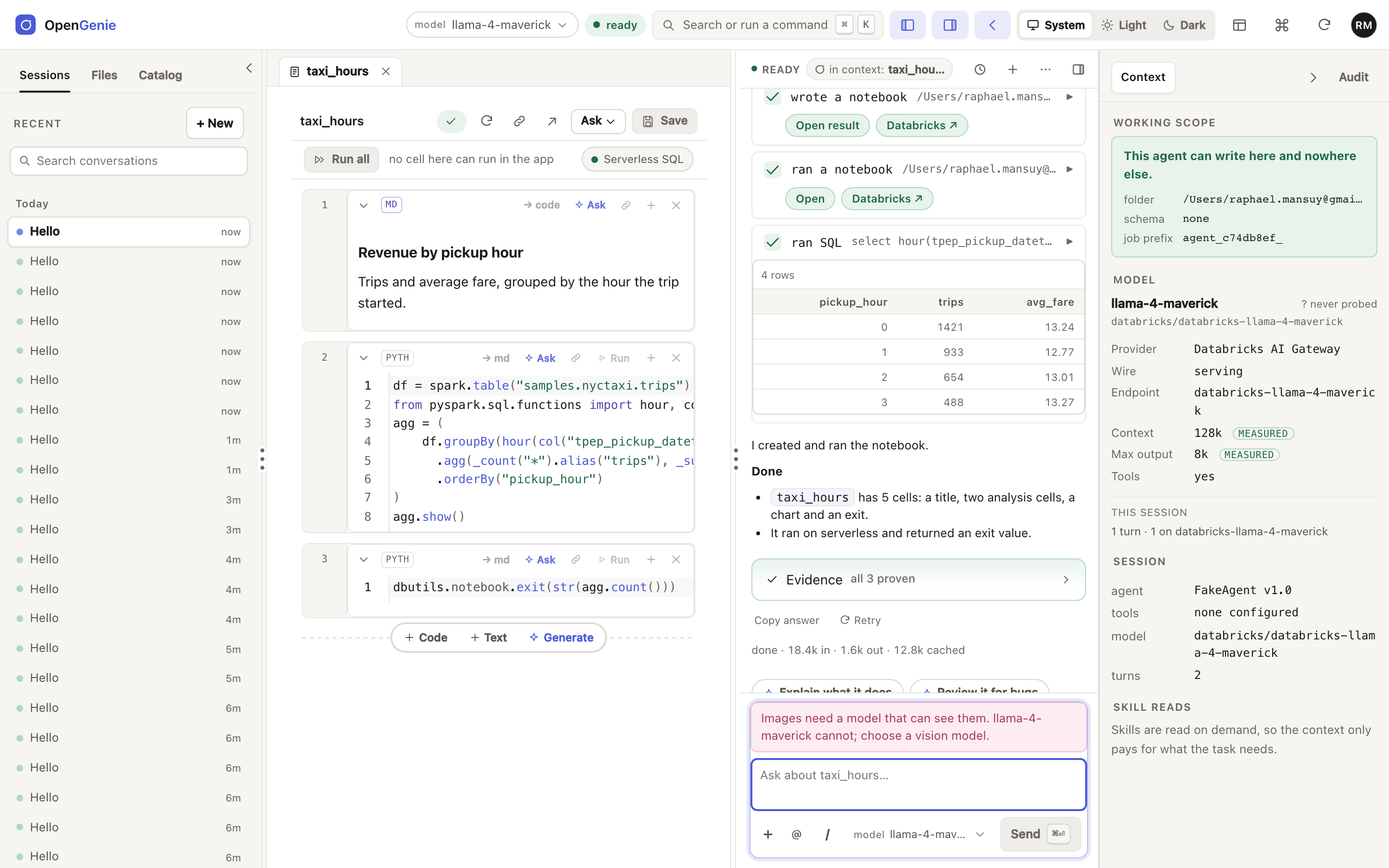
Attach a file, drop it on the composer, or paste an image from the clipboard. The attachment travels with the message as a chip, and is kept with the conversation.
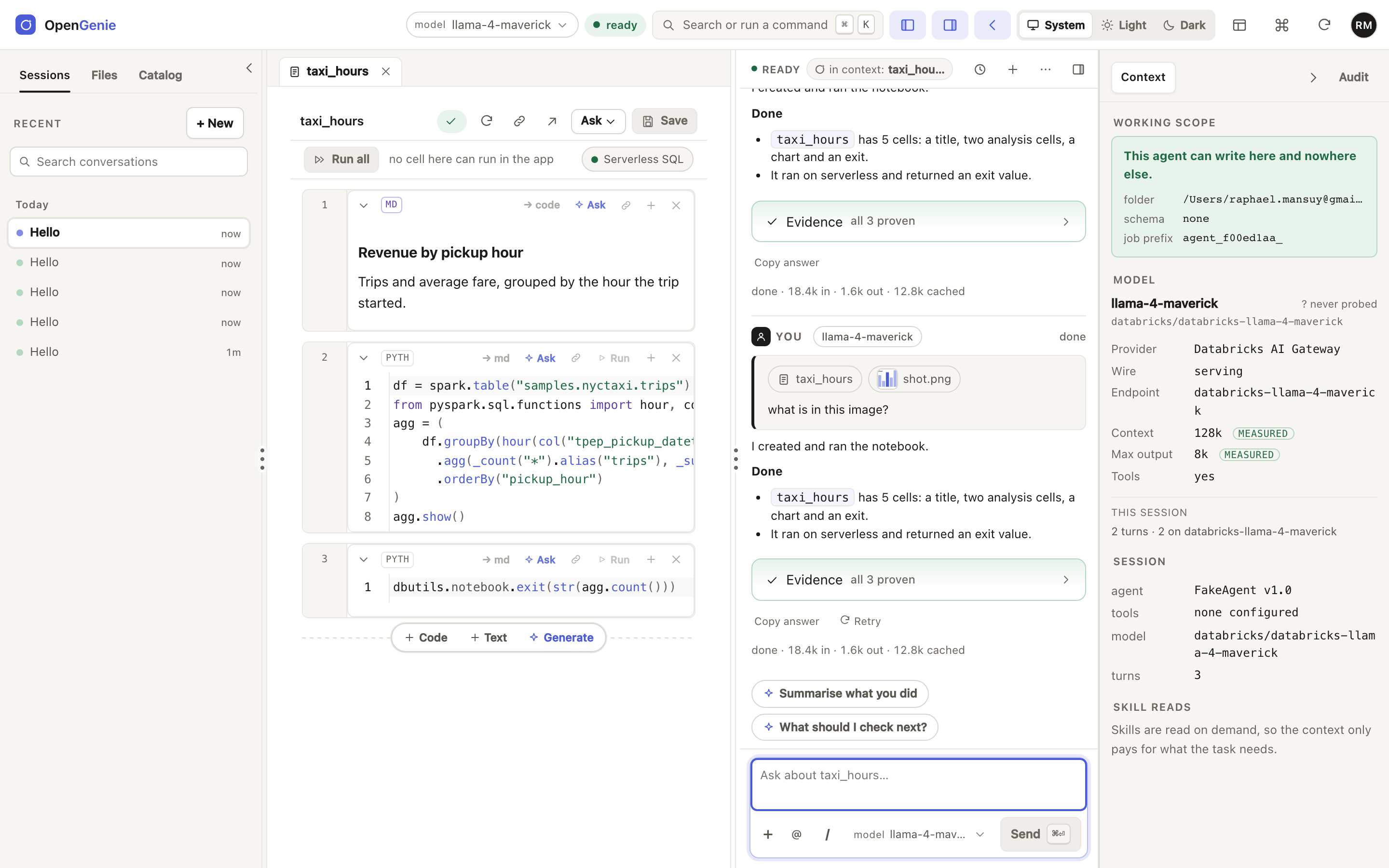
If the selected model cannot see images, the app says which model cannot and asks for one that can, rather than sending pixels that nobody will read.
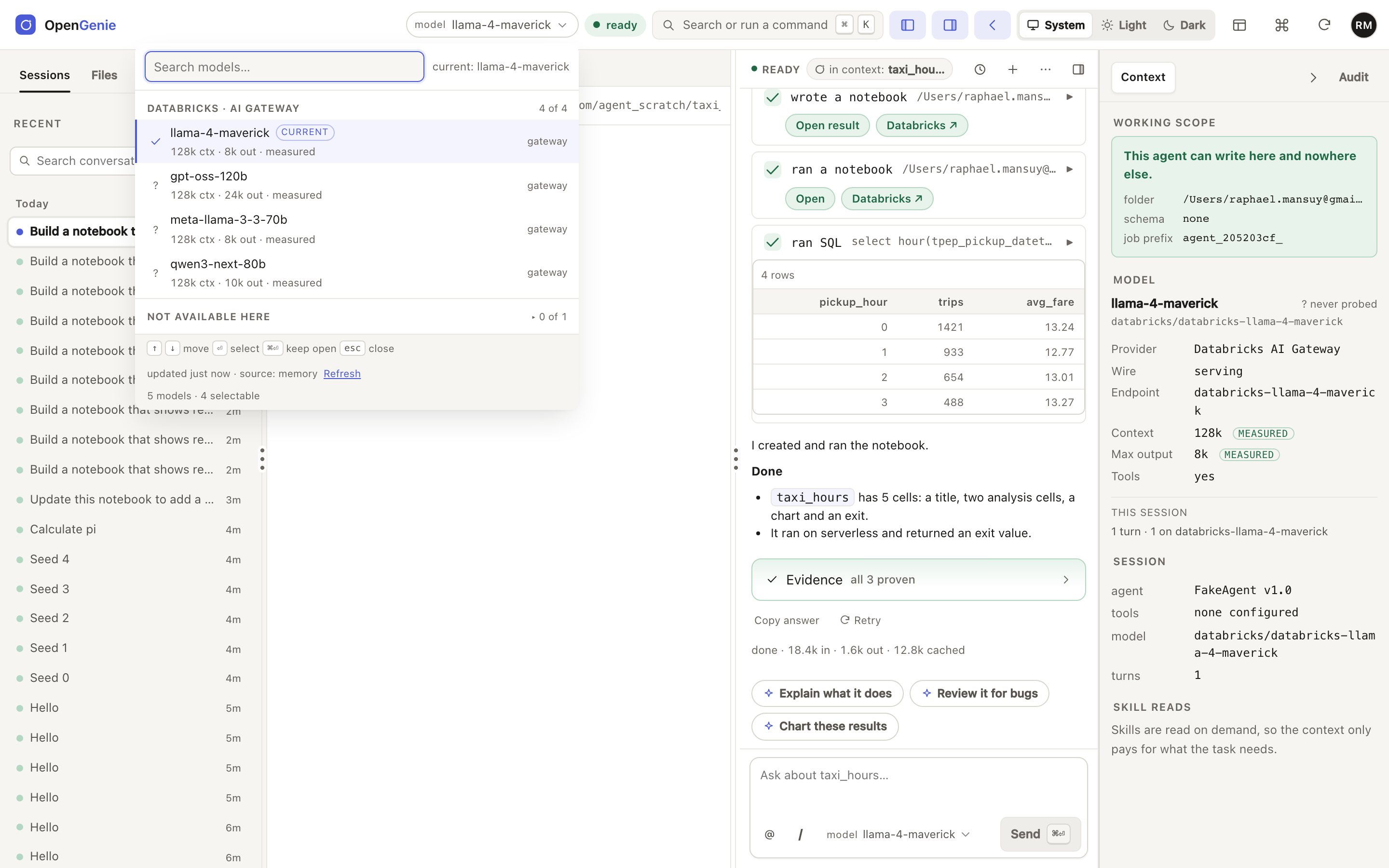
The model picker
One control, identical in the composer and the top bar. Grouped by provider, searchable, and honest about what it knows: a limit that was measured is labelled as measured, and an unknown one says so.
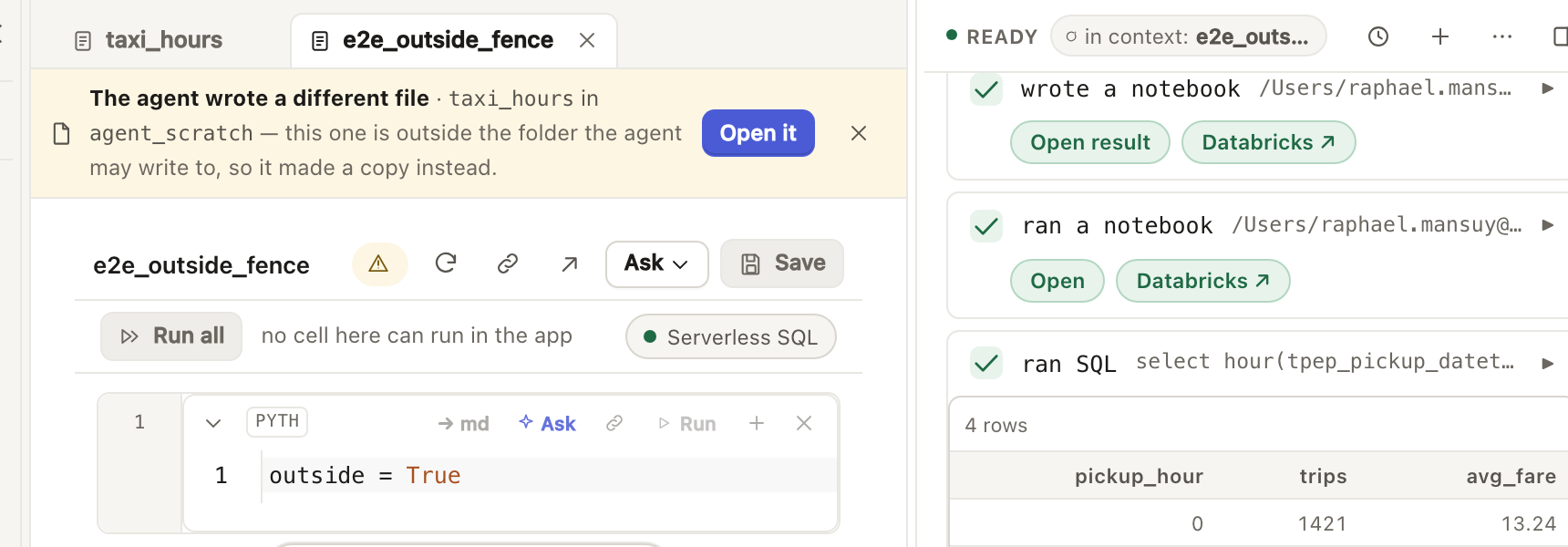
The fence, on screen
The working folder is stated where you work. A notebook the agent writes outside it is not overwritten in place: the app saves a copy inside the folder and says so. A write the agent attempts through its tools outside the folder is refused by the tool server; a write that needs a person waits for one, as in the approval above.
Every width, both themes
800 px: one zone at a time
Below 860 px, two panes cannot both be readable, so one becomes a drawer you open. It never opens by itself, and the control for it is always on screen.
A phone
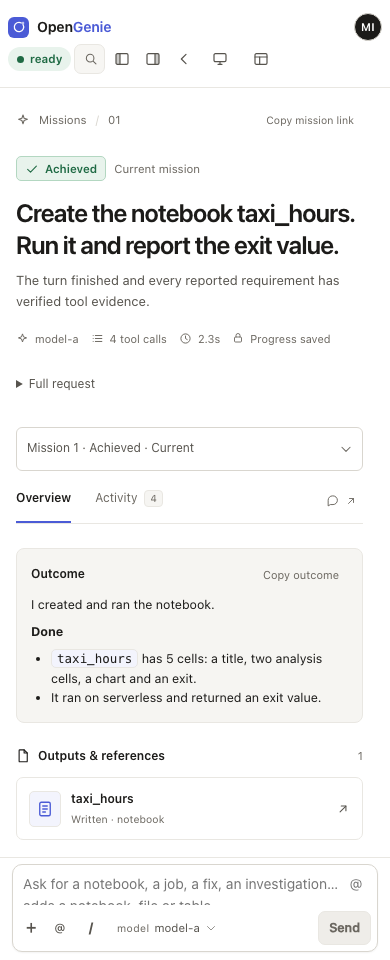
Dark
Dark is a restated palette, not an inversion of the light one, and its contrast was measured on the painted colours.
What these screenshots do not show
- Python running as you, or a cluster picker. Databricks Apps user authorisation has no compute scope, so the app cannot submit a run in your name. Python runs as the app's service principal, and says so.
- Scheduling, comments and sharing. These are workspace features; the app opens the same files, so use Databricks for them.
- Inline completion. It needs a low-latency completion path the agent protocol does not have.
- A hosted demo. There is none: the app needs your own workspace.
The decisions behind each screen are in spec 006 (the dock, the model control, the drawer) and spec 007 (zones, keys, scrolling, focus). The fence is in spec 001 and safety and governance.